
Product Flows: product data automation
Design a sequence of steps that turns an imported record into a publishable product — description, parameters, categories and translations with no manual intervention.
Build your flow in a drag & drop editor
You use the same editor later, too, when a flow needs changing — with no developer and no waiting for a deployment.
Like a production line in a factory
The raw material — a record from the source — enters at the start, and at the end a finished product comes out with the right status. On the way it passes through a series of steps, each of which takes care of one thing.
- You read the order of the steps and the flow's branches straight from the canvas
- Colour coding and an AI badge — at a glance you can tell apart steps with data (indigo), logic (green/red) and generated content (yellow)
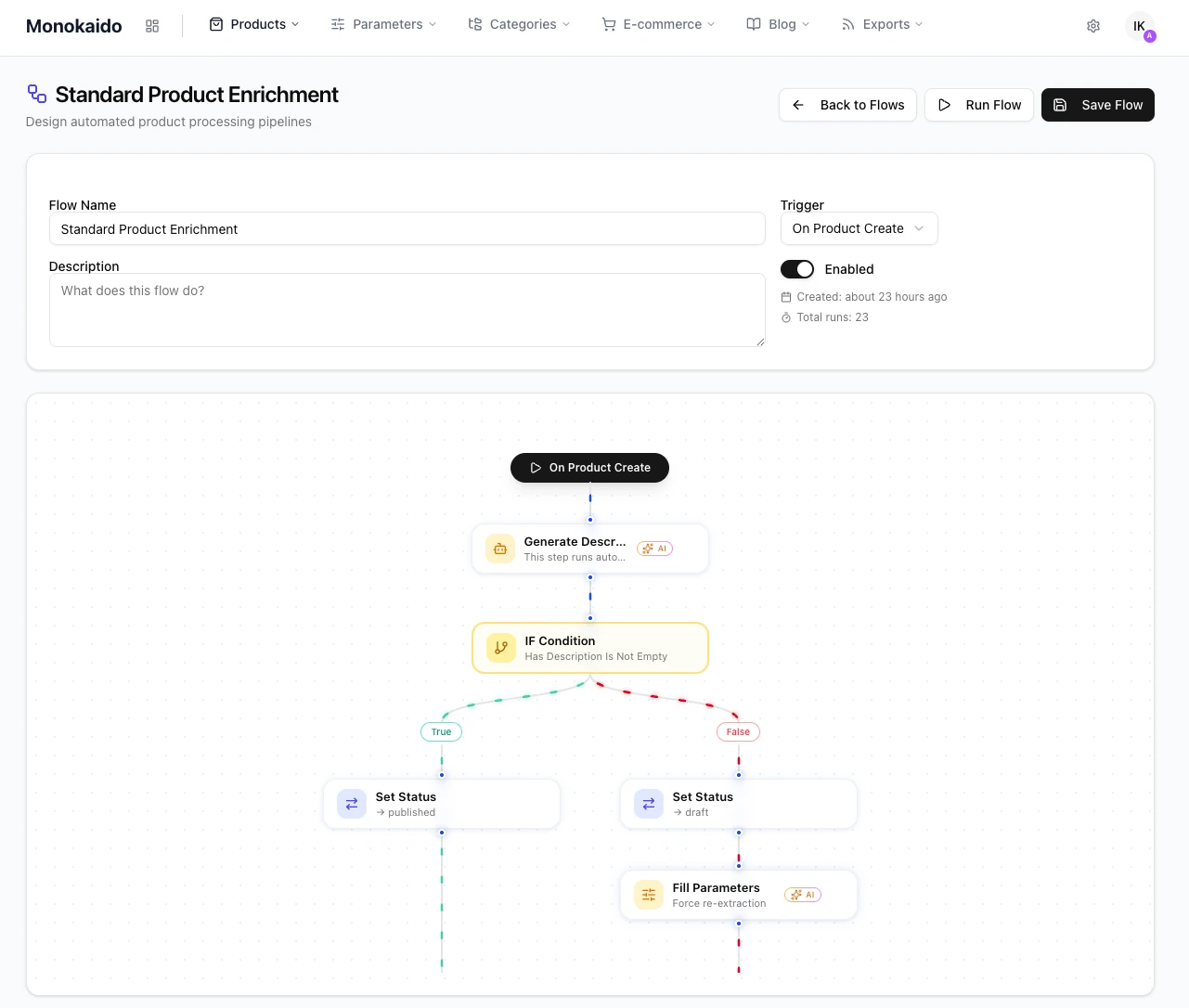
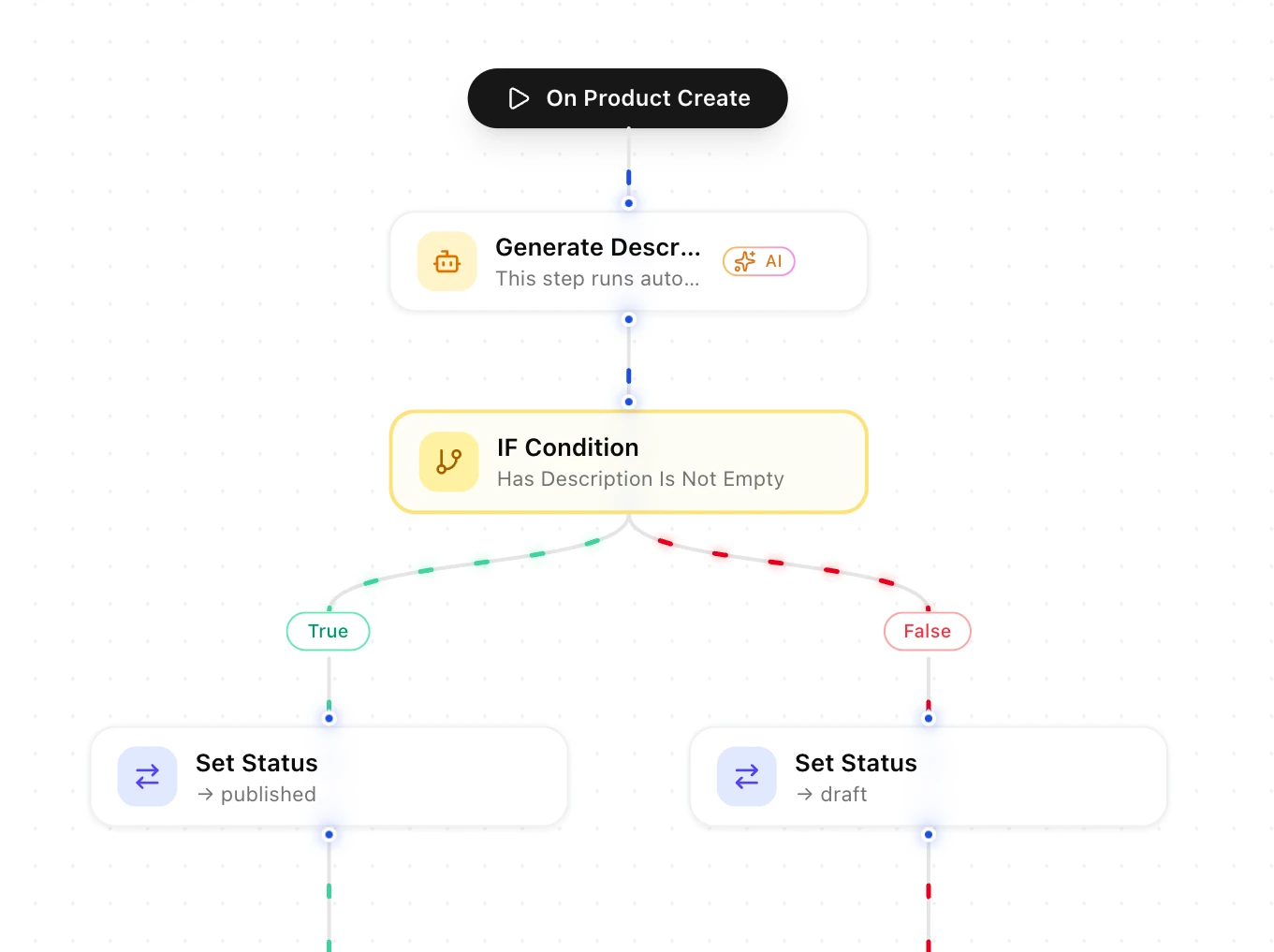
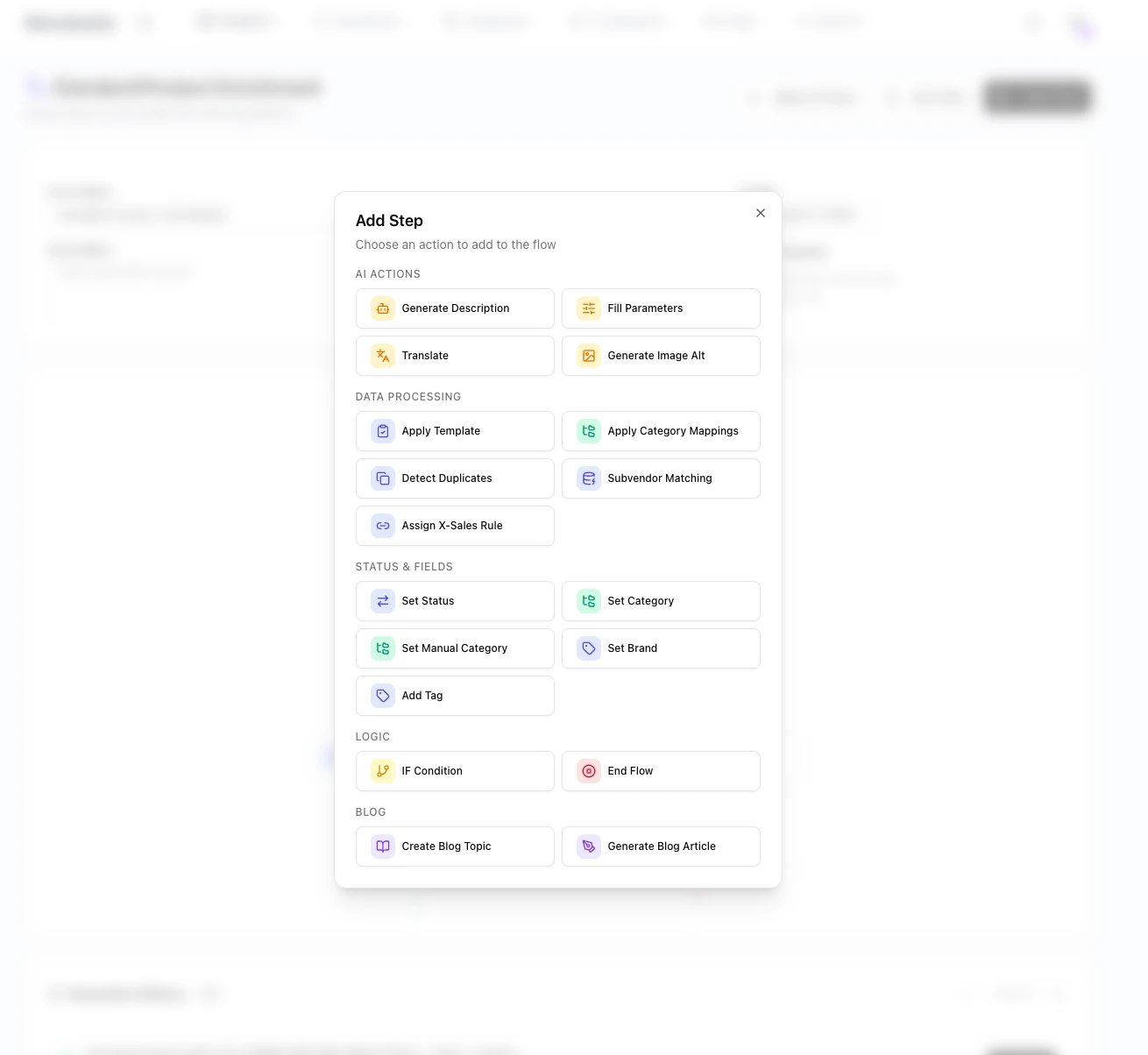
You pick steps from the system's ready-made functions
A flow doesn't create new tools. It only sets the order in which AI generation, categorisation, translations, parameters or templates are applied to a product.

When a flow starts
A trigger ties a flow to an event in the system or to a batch you select by hand.
On Product Create
Starts the flow for every new product — the data is filled in before the product is published.
Read the guideOn Product Update
Reacts to changes in prices, descriptions and stock — rewrites the texts, translates them and refreshes the export channels.
Read the guideManual run
Goes through only the products you select — for cleaning up an older catalogue.
Read the guideOn Order Create
Updates the status of the products in the order, sends notifications and starts the follow-up steps.
Read the guide
Four steps that fill in the text and the parameters
The description, the translation and the parameter values are created while the flow runs — not by hand after the import.
Generate Description
Writes an HTML description following a layout template — including what it sees in the product photos.
Read the guideFill Parameters
Pulls technical parameters from the name and description into the template's structured fields.
Read the guideTranslate
Translates the product's name, description and SEO fields into the target language.
Read the guideGenerate Image Alt
Adds title and alt attributes to the images, ready for search engines.
Read the guide
Data operations and flow branching
Steps that don't write text — they work with the structure of the catalogue and decide which way a product goes through the flow.
Apply Template
Assigns a parameter template — it determines which parameters the product should contain.
Read the guideApply Category Mappings
Rewrites categories according to the mapping rules — across the whole batch at once.
Read the guideIF Condition
Evaluates a condition and splits the flow into two paths — True/False, each with its own steps.
Read the guideMore steps on the menu
Duplicate detection, setting a status, assigning a brand or generating blog articles.
Read the guideLet's build your first flow
We'll go through one flow on your own products — from the trigger to output that is ready to publish.